




Getting started with Hunter.io
Hunter.io helps you easily find and validate email addresses for individuals and companies, including filtering by department, all within Clay.
You can do a few things with Hunter.io within Clay, including:
- Find Emails by Company
- Find Work Email
- Validate Email
We'll cover how to connect Clay to Hunter. Then we'll go over each action that is available with Hunter.
But first, let's talk a little bit about data enrichment waterfalls.
Maximize your data coverage with waterfall enrichment
Hunter.io is an amazing product for finding and verifying someone's email address. However, it's important to know it's not your only option for email enrichment.
We recommend using Clay's waterfall data enrichment to find and verify someone's email address. This allows you to try multiple providers sequentially to maximize your data coverage.
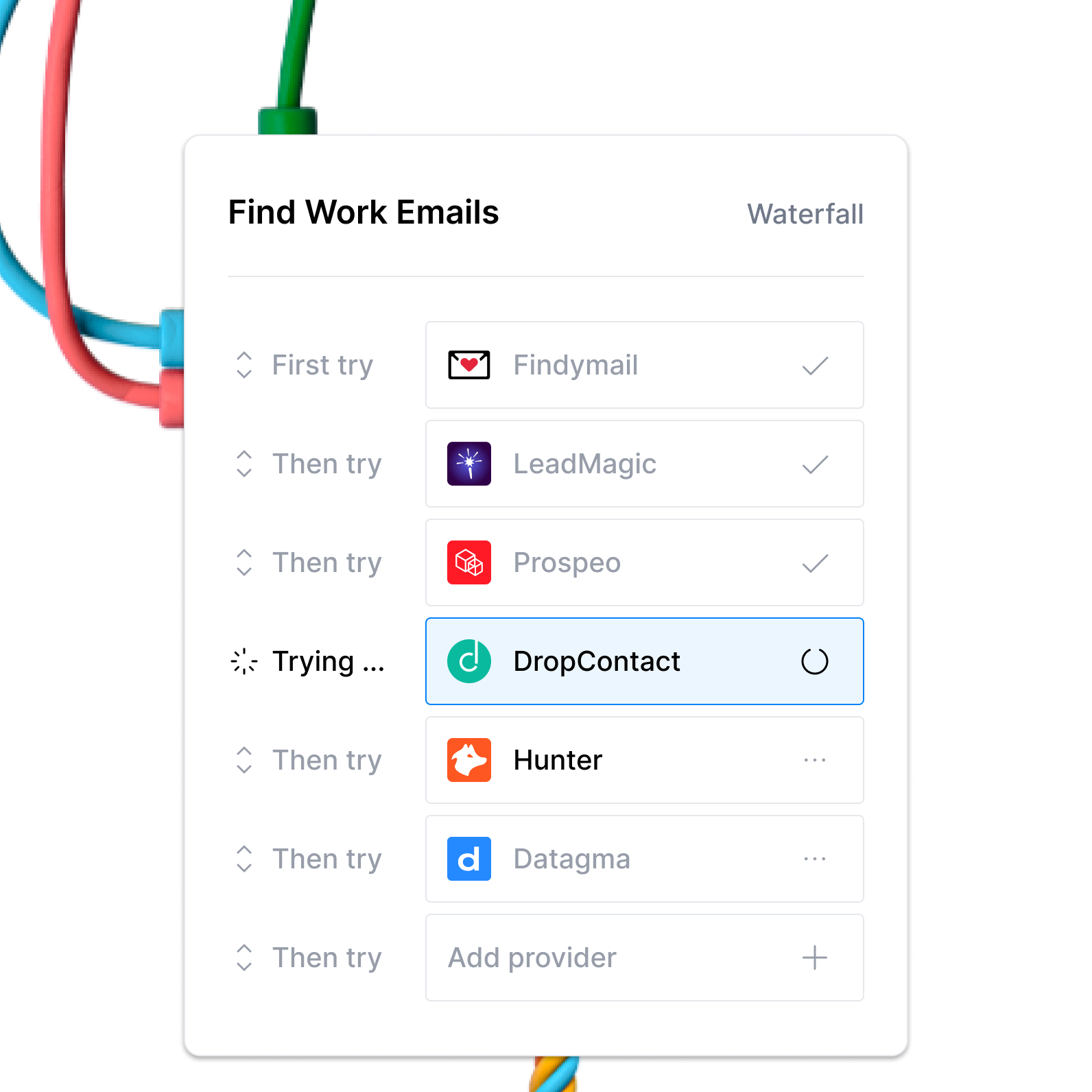
Learn more in this Clay University lesson on how to use Clay waterfalls.
That said, let's get into it on how to use Hunter.io with Clay!
Connecting Clay to Hunter.io
You have two options connecting Hunter to Clay.
Option 1: Use the Clay-provided Hunter account
This means you do not need to have a Hunter account to use the enrichment. You will be charged credits per enriched cell without any need to create a Hunter account.
When you pull up the enrichment you will simply select the Clay-provided Hunter account, marked with the Clay logo. And you can now use the enrichment!

Option 2: Add your own Hunter API key
Alternatively, if you already have a Hunter account, you can connect that by adding your own API key. However, it's only available for paying customers.
Heads up! You'll need Clay's Starter plan ($149/mo) to use your own Hunter API key. It's not accessible on the free plan.
Follow this interactive tutorial with instructions on how to do that:
You can find additional instructions on how to find your Hunter API key in their help documentation.
Next, let's learn more about the actions available with the Hunter integration.
ActionFind Emails by Company
The Find Emails by Company action helps you find public email addresses on the internet from a company domain with the ability to filter by department.
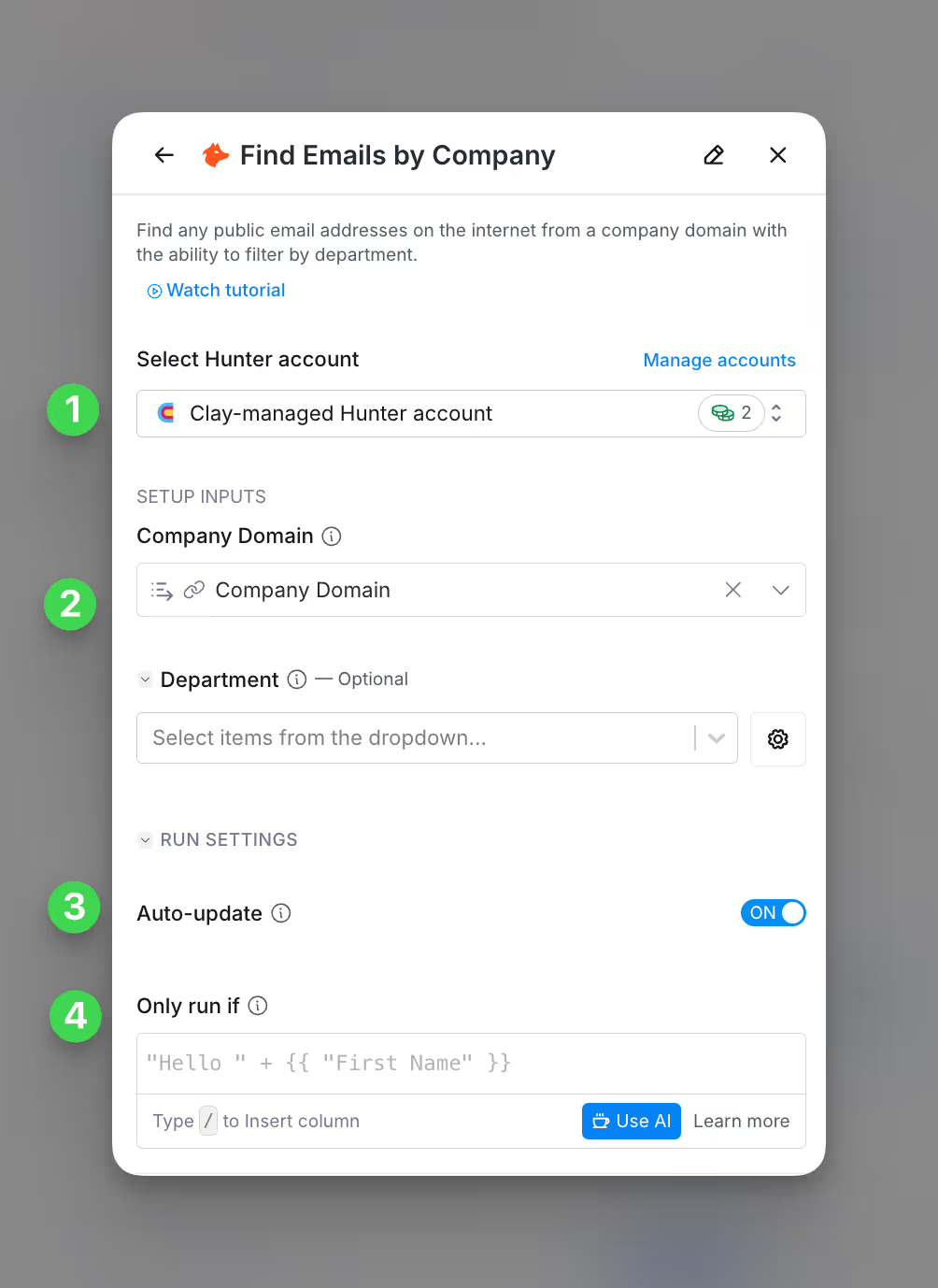
Step 1: Choose the Hunter account you want to use
First, you can use either the Clay-provided Hunter.io account or your own API key.
If you use the Clay-provided Hunter account you will be charged credits per enriched cell. For more information on how Clay credits work, please refer to this guide.
Step 2: Select what emails you'd like to find within a company
Next, you'll select the company domain so you can identify people from that organization. Optionally, you can then select what department you'd like to search to find people.
Follow the step-by-step walkthrough in this interactive lesson for an example:
Step 3 (Optional): Select Auto-update
By default, Hunter will auto-update the integration every 24 hours. This is optional. Make sure to toggle this step off if you do not want to auto-update, however, you might run into stale data problems.
For more information about how auto-update works, please read this brief guide.
Step 4 (Optional): Select Conditional Run Criteria
If you want to only run this enrichment under set circumstances, you are able to input formulas where the column runs only if the formula is true. Learn more about conditional runs in this Clay University lesson.
Action Find Work Email
The Find Work Email action helps you find a person's email address from their name and company domain.
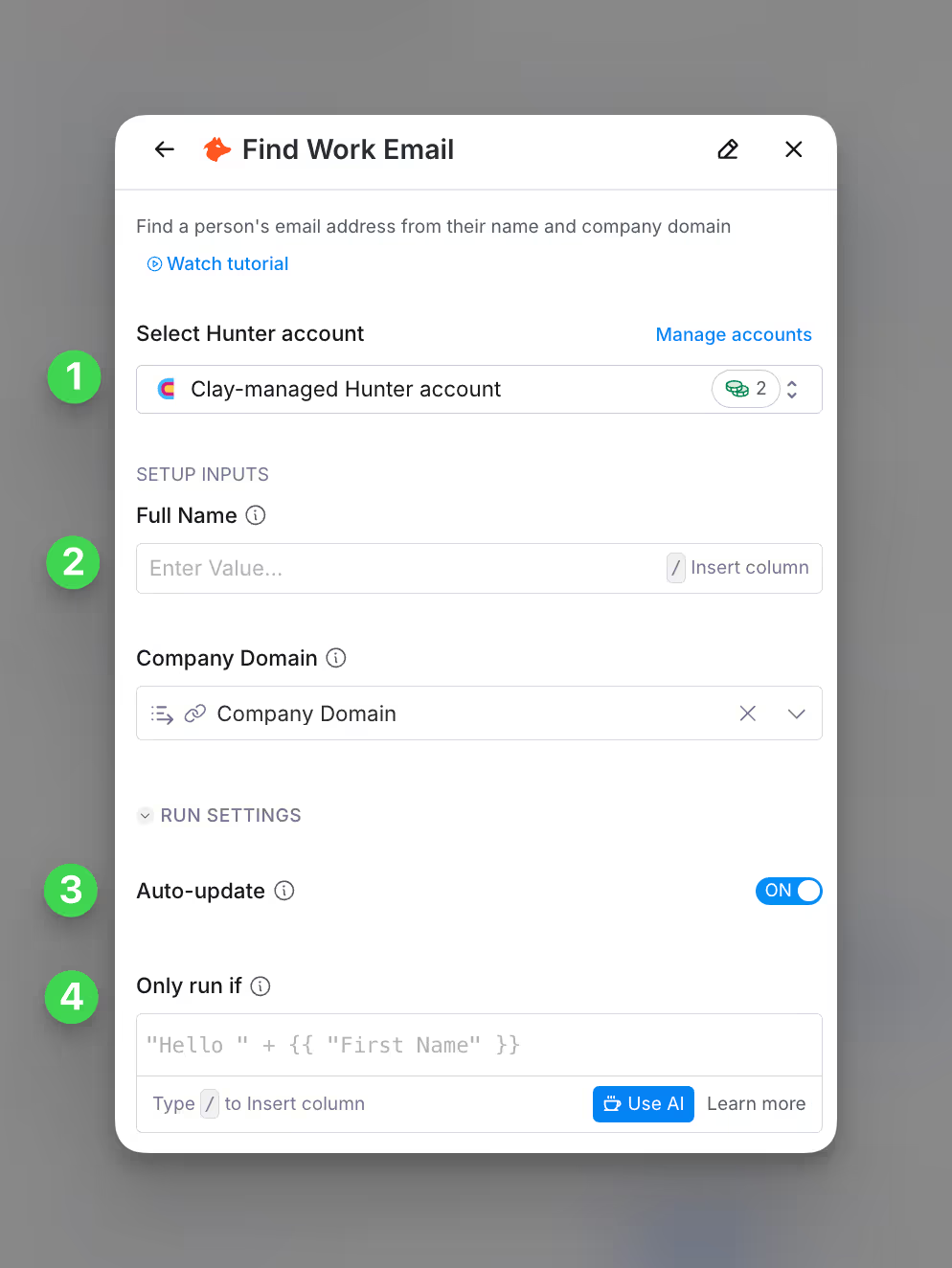
Step 1: Choose the Hunter account you want to use
First, you can use either the Clay-provided Hunter.io account or your own API key.
If you use the Clay-provided Hunter account you will be charged credits per enriched cell. For more information on how Clay credits work, please refer to this guide.
Step 2: Select the individual's full name and domain of the company
Enter the Company Domain and the full name of the contact you are performing the email search on.
Step 3 (Optional): Select Auto-update
By default, Hunter will auto-update the integration every 24 hours. This is optional. Make sure to toggle this step off if you do not want to auto-update, however, you might run into stale data problems.
For more information about how auto-update works, please read this brief guide.
Step 4 (Optional): Select Conditional Run Criteria
If you want to only run this enrichment under set circumstances, you are able to input formulas where the column runs only if the formula is true. Learn more about conditional runs in this Clay University lesson.
Action Validate Email
The Validate Email action helps you determine if an email address has as valid inbox.
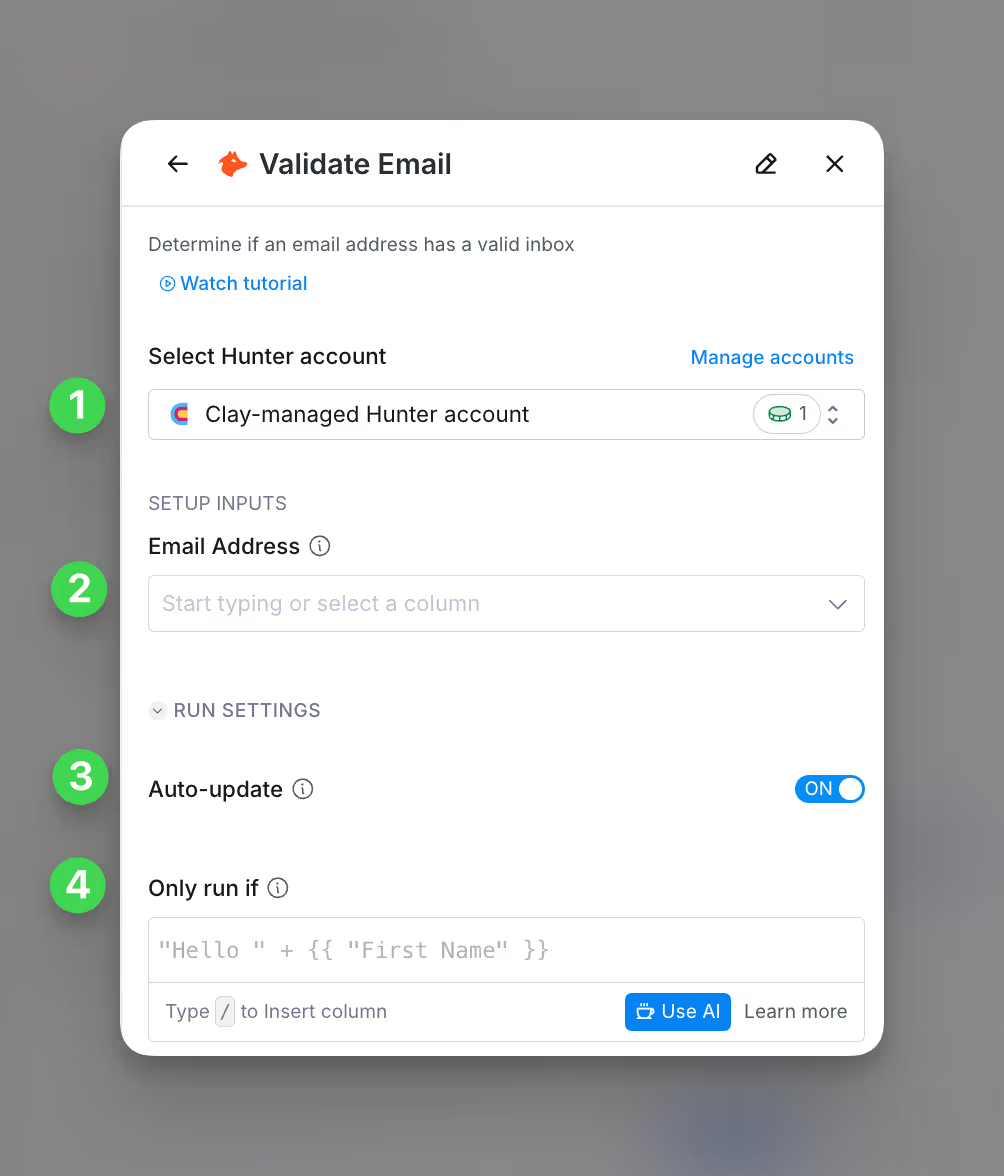
Step 1: Choose the Hunter account you want to use
First, you can use either the Clay-provided Hunter.io account or your own API key.
If you use the Clay-provided Hunter account you will be charged credits per enriched cell. For more information on how Clay credits work, please refer to this guide.
Step 2: Select the email address you want to verify
Enter the Email Address you want to verify. Please make sure it follows the format of name@email.com
Step 3 (Optional): Select Auto-update
By default, Hunter will auto-update the integration every 24 hours. Make sure to toggle this step off if you do not want to auto-update, however, you might run into stale data problems.
Step 4 (Optional): Select Conditional Run Criteria
If you want to only run this enrichment under set circumstances, you are able to input formulas where the column runs only if the formula is true. Learn more about conditional runs in this Clay University lesson.
Explore other docs
Other popular resources
Join a cohort, learn Clay fast!
The faster way to master Clay. Sign in if you're enrolled in a cohort (current or past) or apply!
Hire GTME Talent
Find and connect with GTM talent who've demonstrated expertise in building advanced workflows